


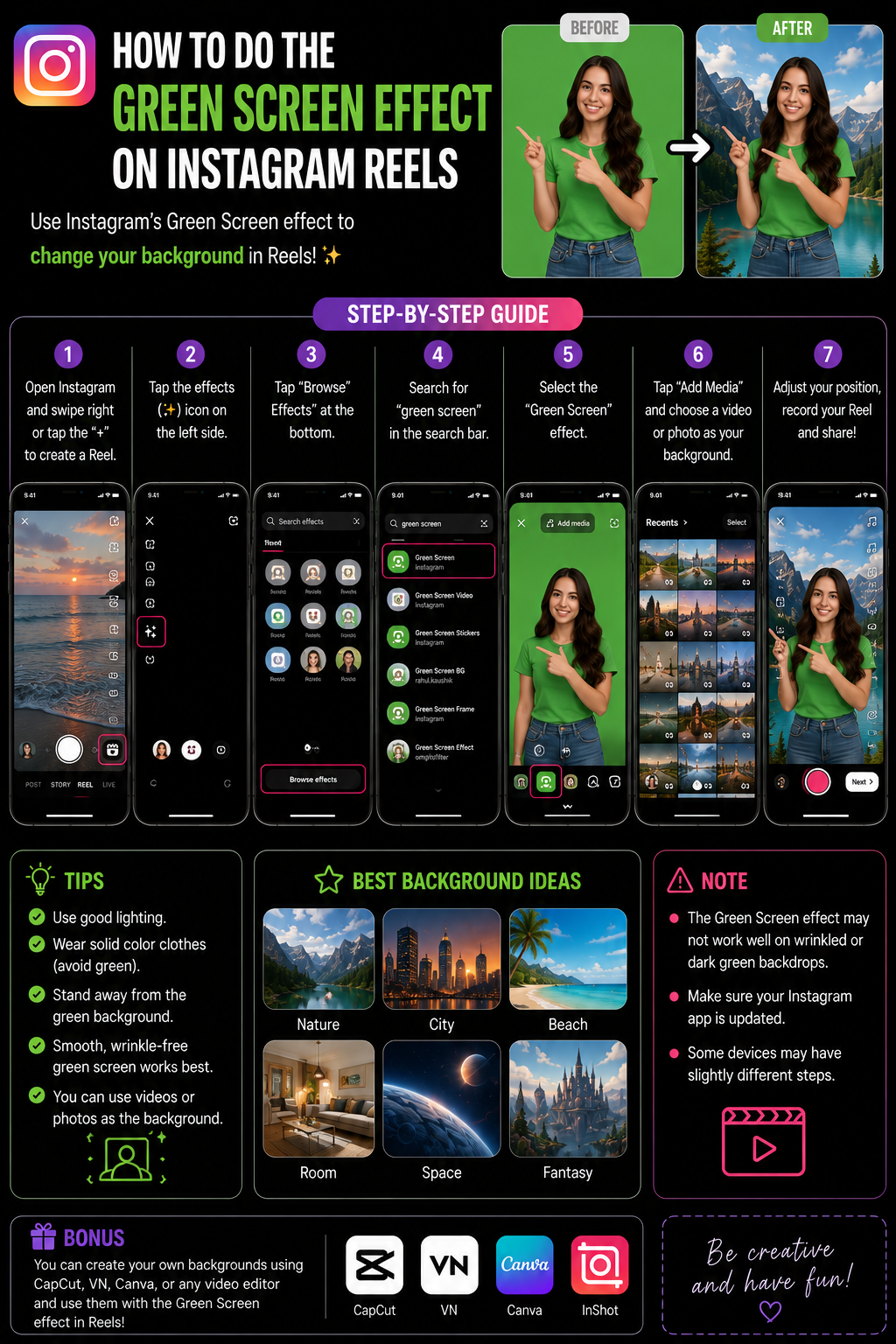

On Instagram Reels, “Green Screen” usually means one of two workflows, and people get stuck because they try the wrong one for what they want: either you use the Green Screen effect inside Instagram’s effect library, or you use Reels’ built-in “background replacement” style tools through templates or effects, depending on what your app version shows. The simplest, most reliable path is the first one: find and save a Green Screen effect from the Effect Gallery, then apply it in Reels like any other face effect. Instagram’s Help Center confirms you can add effects and filters while creating content, which is the foundation for this entire workflow. Add effects and filters ✅
Definitions 🧠
Green Screen effect is an AR effect that separates you from the background and lets you place an image or video behind you, without needing a physical green wall. These effects are often creator-made, so names vary.
Effect Gallery is Instagram’s searchable library of effects. You typically reach it through the effects tray in the camera and tapping Browse Effects (magnifying glass).
Saving an effect bookmarks it so it stays in your effects tray, which is important because many Green Screen effects are not permanently featured in the default tray.
Why Important? 🎯✨
Green Screen Reels are a cheat code for clear storytelling: you can speak while showing a screenshot, a slide, a product photo, a meme, a chart, a travel shot, or a screen recording behind you, and the viewer instantly understands what you are reacting to. It also boosts retention because you’re combining face + context, which keeps people watching longer 😄.
Metaphor time: it’s like standing in front of a presentation slide while you talk, except the slide is any photo you want and you don’t need editing software.
How to Apply ✅🛠️
Method 1: Use a Green Screen Effect in Reels (Most Common) 🟩
1) Open Instagram and tap + → choose Reel.
2) Tap the Effects icon (it looks like sparkle stars or effects).
3) Tap Browse Effects or the search icon.
4) Search keywords like green screen, greenscreen, background, bg, screen.
5) Pick an effect that supports a background image or video and tap Try it.
6) If you like it, tap save so it stays in your effects tray.
7) Select your background media if the effect offers it, then record your Reel.
8) Resize and reposition yourself by pinching and dragging so you don’t cover important parts of the background.
This method aligns with Instagram’s official guidance that you can add effects and filters before sharing content. Add effects and filters ✅
Method 2: Save the Exact Green Screen Effect from Someone Else’s Reel 🔎💡
If you saw the exact Green Screen look on someone’s Reel, this is usually the fastest and avoids naming differences:
1) Open the Reel that uses the effect.
2) Tap the effect name displayed near the bottom or top of the screen.
3) Tap Try it or Save effect.
4) Then open your Reels camera and pick the saved effect from your tray.
This is the easiest way to get the same effect without guessing which “Green Screen” variant you found in search 😅.
Make It Look Clean: 6 Quick Quality Tips ✨
1) Light your face from the front 💡
Segmentation looks cleaner with bright, even lighting, especially around hair and hands.
2) Choose a simple background 🧠
Busy moving backgrounds can make the cutout shimmer. Use a still image for explanations.
3) Avoid wearing green 🟩😅
Some effects still behave like classic chroma key and can “eat” green clothing.
4) Keep your face away from the top UI 📌
Leave space so captions and on-screen UI don’t cover your expression.
5) Record short segments 🎬
If you have multiple points, record in clips so delivery stays natural.
6) Export backgrounds in the right aspect ratio 📐
If your background is 9:16 it will look best in Reels. Screenshots from websites often need cropping.
Table 📊
| Goal | Best background | Best Green Screen style | Pro tip |
|---|---|---|---|
| Explain a headline | Screenshot | Image Green Screen effect | Make yourself smaller so text stays readable |
| React to a clip | Screen recording | Video Green Screen effect | Lower background volume if distracting |
| Teach a step-by-step | Slide or checklist image | Image Green Screen effect | Point at items with your hand for clarity |
| Product highlight | Product photo | Image Green Screen effect | Place product on one side, you on the other |
| Travel story | Photo sequence | Image Green Screen effect | Change background between clips for rhythm |
Diagram 🧩
Open Reels camera
     |
     v
Tap Effects -> Browse / Search
     |
     v
Find a Green Screen effect -> Save
     |
     v
Choose background (image/video) if the effect allows
     |
     v
Record -> Resize yourself -> Post ✅
Examples 😄
Example 1: “Me reacting to a website”
You screen record the website, then you choose a Green Screen video-style effect, put the recording behind you, and narrate what viewers should click.
Example 2: “Breaking down a headline”
You screenshot the headline, use an image Green Screen effect, position yourself in the bottom corner, and explain the context in 10 seconds.
Example 3: “Before / after story”
You place a before photo as the background, record a short clip, then switch background to after photo and record the second clip.
Anecdote ☕😂
I’ve seen people swear Instagram “removed Green Screen” because they couldn’t find it in the default filters, and the whole issue was they were looking at color filters instead of Effects. Once they opened Browse Effects and searched “green screen,” they found several versions instantly, saved one, and from that moment Green Screen became a one-tap feature instead of a scavenger hunt 😅.
Personal Experience 🙂
When I want a specific Green Screen look, I skip keyword search and instead find a Reel that already uses the effect and save it from there. It’s faster, it guarantees the exact result, and it avoids the “why does mine look different” problem.
Conclusion ✅😌
To do Green Screen on Instagram Reels, the most reliable method is to use an effect from the Effect Gallery: open Reels, tap Effects, search “green screen,” preview and save the one you like, then choose your background media and record. If you want the exact same Green Screen look someone else used, tap the effect name on their Reel and save it, then use it from your tray. Once saved, it becomes a quick reusable tool for tutorials, reactions, and storytelling, and with good lighting and a clean background, your cutout will look smooth and professional 😄🟩🎬.
10 Niche FAQs 🤓✅
1) Why can’t I find Green Screen in my effects tray?
Because effects rotate and are creator-made. Use Browse Effects and search.
2) Is Green Screen built-in or an effect?
Usually an effect (AR filter), not a permanent built-in tool.
3) Why does my outline shimmer?
Low light and busy backgrounds make segmentation harder. Add front lighting and use a simpler background.
4) Can I use a video as the background?
Yes, if the effect supports video backgrounds. Not every Green Screen effect does.
5) Why does my shirt disappear?
If you wear green, some effects treat it like chroma key and remove it. Avoid green clothing.
6) Why does it look different from my friend’s?
Different effect versions and different camera processing. Save the exact effect from a Reel to match.
7) Can I reposition myself on the screen?
Yes, most effects let you pinch and drag your cutout.
8) Does Green Screen work on Android and iPhone the same way?
Mostly, but performance can vary depending on device power and app version.
9) What if Effects search is blank?
Restart Instagram, update, and if needed clear cache or reinstall so the Effect Gallery loads.
10) Where is the official guidance for using effects?
Instagram Help Center explains adding effects and filters during creation. Add effects and filters
People Also Asked 🔎🙂
1) Can I green screen a screenshot behind me?
Yes, that’s one of the most common uses, especially for commentary and tutorials.
2) Why does the background crop weirdly?
Aspect ratio mismatch. Use or crop backgrounds to 9:16 for Reels.
3) Can I edit the background after recording?
Usually the background is baked in as part of the effect. If you want post-edit control, use an external editor.
4) Is Green Screen available everywhere?
Effect availability varies by region and creators, but you can usually find at least one version via search.
5) What’s the quickest method overall?
Find a Reel that uses the effect, tap the effect name, and save it, then use it in your own Reels.