


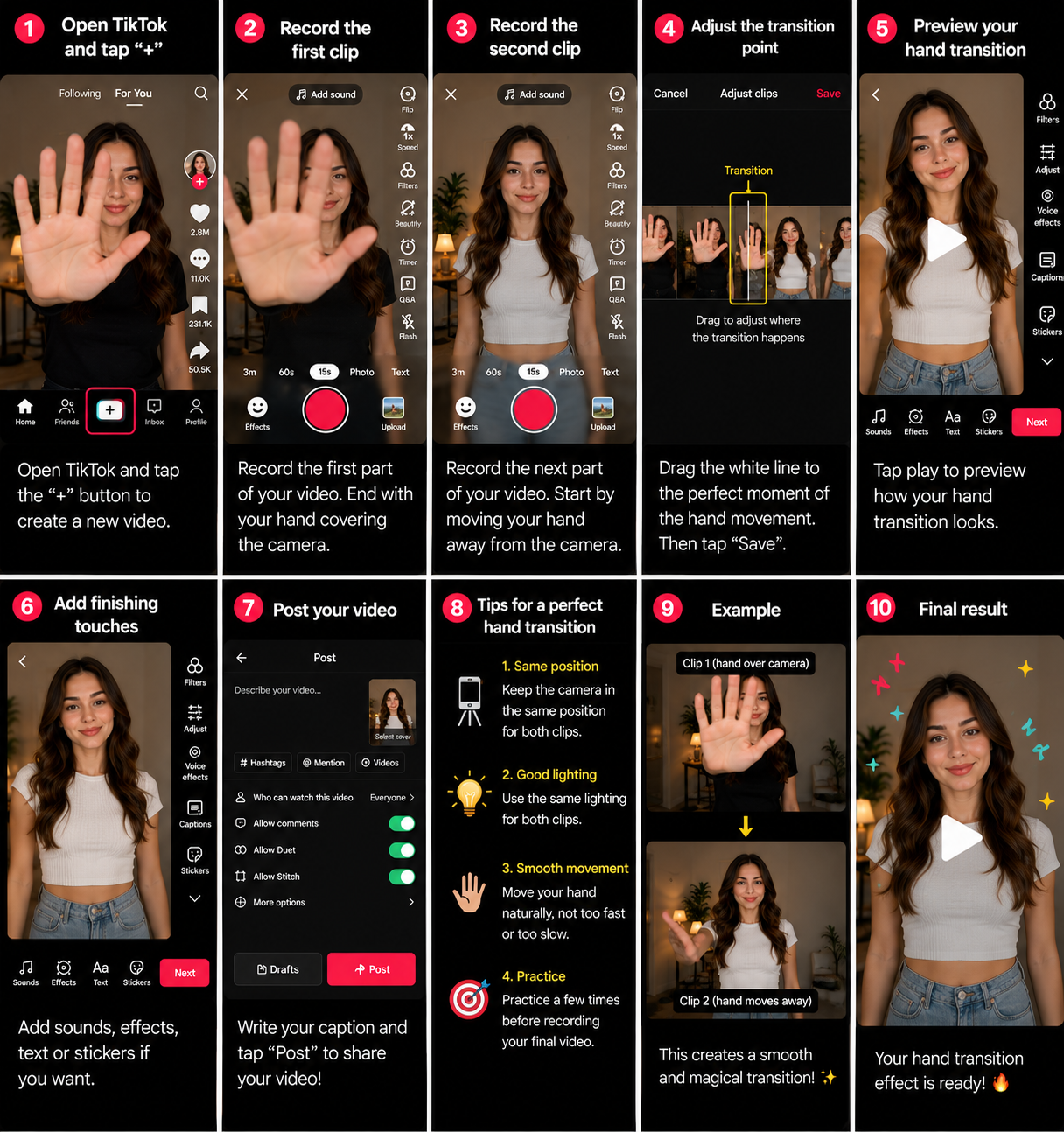

The Hand Transition effect on Instagram is a creative Reels editing technique where your hand covers, swipes, taps, snaps, pushes, or passes in front of the camera to hide the cut between two clips. When you do it cleanly, the viewer sees one smooth movement and then suddenly discovers a new outfit, makeup look, location, room setup, product color, hairstyle, food result, or before and after transformation.
The best part is that the hand transition does not depend on one specific Instagram filter or effect name. You can create it manually with your camera, accurate trimming, matched movement, and a well timed sound cue. Instagram’s native Reels editor can help you trim and arrange clips, while Meta’s Edits app gives you more detailed control over video, music, effects, text, timing, and clip level editing when you want a cleaner result.
Think of your hand as a tiny curtain in front of the camera. In the first clip, the hand closes the curtain. In the second clip, the hand opens the curtain and reveals the new scene. If the hand position, direction, speed, lighting, camera angle, and audio all match, the edit feels smooth, simple, and satisfying. 😊
Definitions 🧠
Hand transition: A transition where the creator uses a hand movement to connect two clips, usually by covering, swiping, tapping, snapping, or pushing across the lens.
Hand cover transition: A transition where the palm or fingers fully cover the camera lens at the end of the first clip and uncover it at the beginning of the second clip.
Hand swipe transition: A transition where the hand moves across the frame from one side to another, creating a wipe style change between scenes.
Hand tap transition: A transition where the creator taps or pretends to tap the camera, making the scene change appear triggered by touch.
Snap transition: A transition where a finger snap marks the exact moment of change, often used for outfit, makeup, or background reveals.
Cut point: The exact frame where the first clip ends and the second clip begins.
Motion blur: The blur created when the hand moves quickly. This blur helps hide the cut between clips.
Cut on action: A technique where the edit happens during movement instead of after the movement stops, making the transition feel more natural.
Beat sync: Aligning the cut with a music beat, lyric, clap, snap, whoosh, or sound effect.
Reveal: The moment after the hand moves away and the viewer sees the new outfit, scene, product, room, makeup, or result.
Why the Hand Transition Effect Is Popular on Instagram 🎯
The hand transition is popular because it creates a clear visual payoff. Instagram Reels are often built around quick transformations, and viewers enjoy seeing a simple movement turn into a surprising result. A casual outfit becomes a styled look, a bare face becomes a makeup reveal, a messy desk becomes organized, a product package opens, or a travel scene changes from one location to another with one smooth hand movement.
It also works because it feels physical. Instead of relying only on a digital effect, the creator gives the viewer a reason for the cut. The hand covers the frame, the scene changes while the frame is hidden, and the reveal feels natural when the hand moves away. This is why a simple hand transition can look more polished than a heavy digital transition when the recording and trimming are done correctly.
A good hand transition is like turning a page in a visual story. The viewer knows the scene is changing, but the movement makes the change feel intentional rather than abrupt. 📖✨
How to Apply the Hand Transition Effect 🛠️
Method 1: Classic Hand Cover Transition ✋
This is the easiest hand transition and the best starting point for beginners.
1. Open Instagram and tap the Create or plus button.
2. Select Reel.
3. Place your phone on a tripod, shelf, table, or stable surface.
4. Record the first clip with your starting outfit, makeup, room, product, location, or scene.
5. At the end of the clip, move your hand toward the lens until your palm fully covers the camera.
6. Keep recording for a very short moment after the lens is fully covered.
7. Stop recording.
8. Change the outfit, room, makeup, background, product, or location.
9. Start the second clip with your hand already covering the lens.
10. Pull your hand away in the same direction and at a similar speed.
11. Open the Reel editing timeline.
12. Trim the first clip at the frame where the lens is fully covered.
13. Trim the second clip so it begins from a matching fully covered frame.
14. Add music or a short whoosh sound at the cut point.
15. Preview the full Reel before publishing.
This method works well because the viewer cannot see the scene change while the hand covers the camera. The cleaner the covered frame, the smoother the transition.
Method 2: Hand Swipe Transition 👋
The hand swipe transition creates a wipe across the screen and works well for fashion, travel, product, room, and lifestyle content.
1. Set your camera in a stable position.
2. Record the first clip.
3. Swipe your hand across the camera from left to right, right to left, top to bottom, or bottom to top.
4. Try to cover most of the frame during the swipe.
5. Stop recording after the hand passes across the lens.
6. Prepare the second scene.
7. Begin the second clip with your hand entering from the same side.
8. Swipe away in the same direction and at a similar speed.
9. Trim both clips where the hand covers the largest part of the frame.
10. Add a short whoosh, swipe, or beat sound.
For a smooth swipe, match direction carefully. If your hand moves left to right in the first clip, the second clip should continue that same movement rather than suddenly reversing it.
Method 3: Hand Tap Transition 👆
The hand tap transition makes it look like touching the camera causes the transformation.
1. Record your first clip.
2. Move one finger toward the camera.
3. Tap or pretend to tap the lens.
4. End the first clip when your fingertip is closest to the lens or partially covers it.
5. Change the visual element you want to reveal.
6. Start the second clip with your finger near the lens.
7. Pull your finger away to reveal the new scene.
8. Trim both clips at the tap point.
9. Add a tap, click, pop, or sparkle sound effect.
This method is especially good for beauty reveals, skincare routines, product transformations, comedy clips, and “tap to change” style Reels.
Method 4: Finger Snap Hand Transition 🫰
The snap transition uses your hand as both a visual cue and an audio cue. It is clean, familiar, and very effective when the body position matches between clips.
1. Place the phone in a fixed position.
2. Stand or sit in your starting position.
3. Record yourself preparing to snap your fingers.
4. Snap and hold the pose for a fraction of a second.
5. Stop recording.
6. Change your outfit, makeup, hairstyle, product, or background.
7. Return to the same position.
8. Record the second clip beginning from the same snap pose.
9. Cut exactly at the snap sound or the frame where your fingers touch.
10. Add a clearer snap sound if the original audio is weak.
The snap transition does not always hide the whole frame, so matching your body position matters more than it does with the hand cover transition.
Method 5: Hand Push Transition 🤲
The hand push transition makes it feel like your hand physically pushes the viewer into the next scene.
1. Record the first clip.
2. Push your hand toward the camera until it fills most of the frame.
3. Stop the clip when your hand is closest to the lens.
4. Start the next clip with your hand close to the lens.
5. Pull your hand back or push forward again to reveal the new scene.
6. Trim at the frame where the hand fills the screen.
7. Add an impact, push, bass, or whoosh sound effect.
This works well for energetic fashion videos, fitness clips, travel location changes, comedy edits, and product reveals.
Method 6: Use Instagram’s Reels Editor for Trimming ✂️
After recording your hand transition clips, Instagram’s native Reels editor helps you arrange and trim them.
1. Add both clips to a Reel.
2. Open the editing timeline.
3. Select the first clip.
4. Trim its ending so it stops at the most covered, blurred, or fastest hand movement frame.
5. Select the second clip.
6. Trim its beginning so it starts from a matching frame.
7. Play the cut repeatedly.
8. Move the trim point forward or backward by a tiny amount if the transition feels late or jumpy.
9. Add music and line the transition up with a beat.
Instagram’s official Reel clip editing guide explains that creators can record, create, and edit Reel clips directly in the app with built in tools.
Method 7: Use Meta’s Edits App for a Cleaner Hand Transition 🎞️
If you want more control, use Meta’s Edits app before publishing the Reel. This is useful when the transition needs frame level trimming, layered audio, extra effects, or more precise timing.
1. Open Edits and create a new project.
2. Import the first and second hand transition clips.
3. Place them next to each other on the timeline.
4. Trim the first clip at the frame where the hand covers the lens or creates the strongest blur.
5. Trim the second clip so it begins from the closest matching hand position.
6. Add a short sound effect at the exact cut.
7. Add a very short blur, flash, or motion effect only if the cut needs extra help.
8. Preview the transition several times.
9. Export the video or share it to Instagram Reels.
Meta’s official Edits announcement describes Edits as a mobile video creation app with tools for creators, including more advanced editing features than the basic in app flow.
Method 8: Combine a Hand Transition with Speed ⚡
Speed changes can make a hand transition feel more dramatic or cinematic.
1. Record the hand movement normally.
2. Import the clips into Instagram Reels or Edits.
3. Split or trim around the hand movement if needed.
4. Speed up the hand movement when you want a sharp whoosh.
5. Slow down the reveal when you want viewers to notice the final look.
6. Add a sound cue at the cut.
7. Preview the movement with the music.
A fast hand movement followed by a slower reveal can work beautifully for outfit changes, beauty transformations, product reveals, and cinematic lifestyle Reels.
Which Hand Transition Method Should You Choose? 📊
| Creative Goal | Best Hand Transition | Main Advantage | Main Limitation |
|---|---|---|---|
| Easy outfit, makeup, or room reveal | Hand cover transition | Very reliable because the lens is fully hidden | Hand position must match in both clips |
| Move from one scene to another | Hand swipe transition | Creates a natural wipe effect | The hand must cover enough of the frame |
| Create a playful transformation | Hand tap transition | Feels interactive and simple | Requires accurate cut timing |
| Show a magical instant change | Finger snap transition | Strong visual and audio cue | Body position must match closely |
| Create energetic movement | Hand push transition | Adds physical impact | Can look rough if movement speed changes |
| Get more precise timing | Edit in Meta Edits | Better control over trimming and sound | Requires an extra editing workflow |
Hand Transition Workflow Diagram 🧩
Choose the reveal
          |
          v
Pick a hand movement
          |
          +--> Cover the lens
          +--> Swipe across the frame
          +--> Tap the camera
          +--> Snap fingers
          +--> Push toward the lens
          |
          v
Record clip one with the hand closing the transition
          |
          v
Change outfit, product, room, makeup, or location
          |
          v
Record clip two with the hand opening the transition
          |
          v
Trim at the fully covered, blurred, or fastest frame
          |
          v
Add music, whoosh, tap, snap, or pop sound
          |
          v
Preview and publish as an Instagram Reel
How to Make the Hand Transition Look Smooth ✨
Use a Stable Camera
A tripod or stable surface is the easiest way to make a hand transition look professional. If the camera moves between clips, the background and subject position may jump suddenly.
Match the Hand Direction
If your hand covers the camera from the right in the first clip, begin the second clip from a matching hand position and move it away in a similar direction.
Cut at the Fully Covered Frame
For hand cover transitions, the best cut usually happens when the lens is completely blocked. This hides differences between the two clips.
Use Similar Hand Speed
A slow hand movement in the first clip and a fast movement in the second clip can make the transition feel uneven. Practice the movement before recording.
Keep Lighting Consistent
If the first clip is bright and the second clip is darker, the cut becomes obvious. Use the same light source and avoid changing exposure between clips.
Return to the Same Body Position
For outfit, makeup, and hairstyle reveals, mark your floor position and keep your face, shoulders, hands, and body angle as similar as possible.
Add a Sound Cue
A whoosh, snap, pop, tap, click, sparkle, or bass hit can hide small visual imperfections and make the transition feel intentional.
Hold the Final Reveal
After your hand moves away, keep the final result on screen for at least one or two seconds so viewers can appreciate the transformation.
Practical Example: Hand Cover Outfit Change Reel 👗🎬
Imagine that you want to create an outfit change Reel. You place your phone on a tripod, choose music with a strong beat at three seconds, and mark your standing position on the floor. In the first clip, you stand in your casual outfit and move your palm toward the lens until it fully covers the camera right before the beat.
You stop recording, change into the second outfit, return to the exact same floor mark, and begin the second clip with your palm already covering the lens. On the beat, you pull your hand away to reveal the new outfit. In the Reel editor or Edits, you trim the first clip at the fully covered frame and start the second clip from a similar covered frame.
You add a short whoosh sound at the cut and leave the final outfit visible for two seconds. The transition works because the camera stays fixed, the body position matches, the hand hides the change, and the reveal happens exactly with the music.
A Short Anecdote ☕
I have seen creators record a good hand transition but leave too many frames after the hand had already covered the lens. The result felt slow because the viewer waited in darkness before the reveal. Once those extra frames were removed and the second clip began immediately from the covered frame, the same transition looked much cleaner.
The lesson is simple: the hand movement matters, but the timing matters even more. A few extra frames can make the reveal feel late, while one accurate cut can make the transformation feel instant.
Personal Workflow 🙂
For a beginner friendly Instagram hand transition, I would start with the classic hand cover because it gives the cleanest hiding point. I would record three versions of the first clip and three versions of the second clip, then choose the pair where the hand position, direction, and speed match most closely.
During editing, I would first create a clean cut without adding any extra effect. If the transition already looks smooth, I would only add a sound cue. If the cut still feels slightly rough, I would test a very short blur, flash, or motion effect in Edits, but I would avoid anything that hides the reveal for too long.
Common Hand Transition Problems and Solutions 🧯
The cut is visible: Trim both clips at the frame where the lens is fully covered or where the hand blur is strongest.
The hand movement does not match: Re record the second clip with the same direction, distance, and speed as the first clip.
The camera jumps: Use a tripod or stable surface and avoid touching the phone between clips.
The lighting changes suddenly: Record both clips under the same light and avoid moving closer or farther from the light source.
The reveal happens too late: Remove extra covered frames so the new scene appears immediately after the cut.
The final result passes too quickly: Hold the reveal on screen for one or two seconds.
The sound feels off: Move the sound effect exactly to the cut point or align the hand movement with a beat.
The transition feels overedited: Remove unnecessary flashes, zooms, stickers, and effects. Let the hand movement do most of the work.
Frequently Asked Questions 🤓
1. What is the Hand Transition effect on Instagram?
It is a Reels transition where your hand covers, swipes, taps, snaps, or pushes across the camera to hide the cut between two clips.
2. Do I need a special Instagram effect for a hand transition?
No. You can create it manually with camera movement and trimming. Extra effects are optional.
3. Where should I cut a hand cover transition?
Cut at the frame where the hand fully covers the lens in the first clip and begin the second clip from a similar covered frame.
4. What is the easiest hand transition for beginners?
The classic hand cover transition is the easiest because it completely hides the scene change.
5. How do I make a hand swipe transition?
Swipe your hand across the camera at the end of the first clip, repeat the same movement at the beginning of the second clip, and cut where the hand covers most of the frame.
6. Why does my transition look jumpy?
The camera position, hand direction, movement speed, body placement, or lighting may not match between clips.
7. Can I edit hand transitions in Edits?
Yes. Edits gives more detailed control over trimming, audio, effects, and timing than the basic Instagram Reels editor.
8. What sound works best for hand transitions?
Whoosh, pop, snap, tap, click, sparkle, impact, and beat drop sounds work well depending on the movement.
9. Can I use hand transitions for product videos?
Yes. Hand swipes, hand covers, and hand taps work well for revealing product colors, packaging, before and after states, and final results.
10. Can I use a hand transition with photos?
Yes. You can combine photo clips with a short hand movement, or use a hand swipe video as a visual wipe between images.
People Also Asked 🔎
How do creators make hand transitions seamless on Instagram?
They use a stable camera, match hand direction, cut at the most covered frame, keep lighting consistent, and place a sound cue exactly at the transition point.
Can I do a hand transition without editing?
You can record the movement, but trimming is usually necessary to make the transition clean and instant.
Is a hand transition better than a digital transition?
For outfit changes, makeup reveals, product switches, and before and after videos, a hand transition often looks more natural because the physical movement gives the cut a clear reason.
What videos work best with hand transitions?
Fashion reveals, makeup transformations, cleaning videos, product demos, travel scene changes, food reveals, room makeovers, hairstyle changes, and comedy clips work especially well.
Should I record inside Instagram or use my phone camera?
Recording inside Instagram is convenient, but using your phone camera first can provide more control and higher quality before you edit in Reels or Edits.
Conclusion ✅
To do the Hand Transition effect on Instagram, record your first clip and move your hand toward, across, or close to the camera so it hides the frame. Then change the outfit, makeup, product, background, room, or location, begin the second clip with a matching hand position, and move the hand away to reveal the result. In Instagram Reels or Meta’s Edits app, trim both clips at the fully covered, most blurred, or fastest hand movement frame.
For the cleanest result, use a stable camera, match hand direction and speed, keep lighting consistent, return to the same body position, and place a sound effect or music beat exactly on the cut. Extra effects can help, but the real magic comes from the physical hand movement and accurate timing.
A smooth hand transition should feel simple, clear, and satisfying. When your hand works like a small curtain between two moments, the viewer gets a clean reveal that feels polished, natural, and worth watching again. ✋🎬✨